
The Beginner’s Guide to Creating a Multilingual WordPress Website
In today’s world, your website serves as your online identity. It’s a space where you can show people what your brand is about and what you offer. As a content management system (CMS) that powers a big portion of the web, WordPress lets you easily build and grow any type of website.
One of the major advantages of WordPress is the possibility to use it for creating multilingual websites. This means you can make a website that speaks to people in different languages, reaching a wider audience around the globe.
But creating a multilingual website can be a challenge, especially if you’re not sure where to start. What should you consider first? How do you choose the right domain and hosting? And how exactly do you translate your site’s content?
In this guide, we’ll walk you through the steps you need to take to build a multilingual site on WordPress that connects with a diverse audience.
What You’ll Learn
How to Create a Multilingual WordPress Website
How to Get Started with Your Multilingual WordPress Website
How to Install WordPress with Shinjiru Hosting
How to Set Up Multiple Domains for Different Languages
Setting Up Your Multilingual Plugin
Why Choose WordPress?
A powerful tool used by some of the biggest names on the web, WordPress is free, easy to navigate, and works well for different types of websites.
- Simple to Use: You don’t need to be a tech expert. WordPress makes managing your site easy.
- Scalable: WordPress grows with you, from a simple blog to a big e-commerce site.
- SEO Friendly: It’s built to be friendly to search engines, helping your site rank higher.
- Customizable: With many themes and plugins, you can make your WordPress site look and work how you want.
How to Create a Multilingual WordPress Website
WordPress supports more than 53 languages, which means you can create your website in the language you prefer. However, by default, WordPress works in just one language at a time. To use multiple languages on your site, you’ll need to use a plugin.
In WordPress, a plugin is like an extra tool that you can add to your website. It’s a way to add new features and capabilities to your site without needing to be a technical expert.
For example, in this case, a multilingual plugin makes it easier to develop a website with content in several languages. Multilingual plugins come in different varieties, offering features such as manual translation, language switching capabilities, and automatic translation.
One great example is WPML (WordPress Multilingual Plugin). This premium plugin allows for translation within a single WordPress installation. With WPML, you can select the languages for your site and begin translating your content easily. It simplifies running a multilingual website without managing multiple sites or a multisite network. Most large plugins, including WPML, have easy-to-manage technical requirements. For example, WPML needs PHP 7.0 or higher and at least 128MB of memory.
How to Get Started with Your Multilingual WordPress Website
While WordPress itself is free, you need a domain name, a web hosting plan, and a URL format to get started with it.
Selecting a Domain Name
Think of your domain name as the digital address for your brand’s home on the internet. For a multilingual site, you need to make sure it is:
- Easy to Remember: Avoid complex spellings to ensure people can recall and find your site easily.
- Descriptive: Choose a name that clearly suggests what your site is about.
- Culturally Sensitive: Ensure it resonates well across the languages and regions you target. Think about its meaning and perception in different cultures.
- Adaptable: Select a name that is flexible enough to accommodate future expansions, changes in your services or products, and potential shifts in your brand’s focus.
Choosing a Web Hosting Plan
Web hosting puts your website online. The performance and reliability of your website largely depend on your web hosting. When selecting a hosting plan, consider:
- Performance: Ensure high uptime and fast loading times for better user experience and SEO.
- Scalability: Make sure your host can grow with your site. Look for easy upgrades to more powerful plans.
- Security: Good hosts offer strong security measures, including regular backups and malware protection.
- Customer Support: Responsive and knowledgeable support can help and offer you guidance.
Shinjiru offers WordPress web hosting designed specifically for WordPress websites. We meet all of the requirements listed above and more. No matter which plan you choose, you will benefit from fast loading times, one-click install and management tools, and hosting servers protected by Web Application Firewall (WAF). If you ever run into any problems, you can reach out to our 24/7 professional support team.
Deciding on a URL Structure
Your URL structure indicates your target country to search engines, which helps in ranking your website in relevant search results.
For example, with WPML you have several URL structure options to consider:
| URL Structure Type | Example and Description | Benefits for You |
| Subdirectories for each language | Use language codes after your main domain, for instance example.com/en for English and example.com/fr for French | You only need to own one domain. It’s user-friendly, making navigation between languages easy for your visitors. |
| Different subdomains per language | Create a language-specific subdomain, like en.example.com for English and fr.example.com for French | Clearly separates your site’s content by language. It allows you to target your SEO strategies specifically for different language audiences. |
| Different domains per language | Buy and use separate domains for each language, such as example.com for English and example.fr for French. | Gives you complete localization with distinct branding for each language. You can tailor your SEO approach for each language, optimizing your reach in different regions. |
| Language name added as a parameter | Add the language name as a parameter in your URL, like example.com?lang=en for English and example.com?lang=fr for French. | Simplifies the structure of your multilingual site. Useful for quick setups, but not the best for multilingual SEO. |
Consider your budget, resources, and maintenance efforts when choosing a URL format. It should align with your geographical targeting goals and site management capabilities.
How to Install WordPress with Shinjiru Hosting
When you purchase WordPress web hosting with Shinjiru, you’ll receive cPanel login information. cPanel simplifies managing your web hosting and allows you to install WordPress in one click.
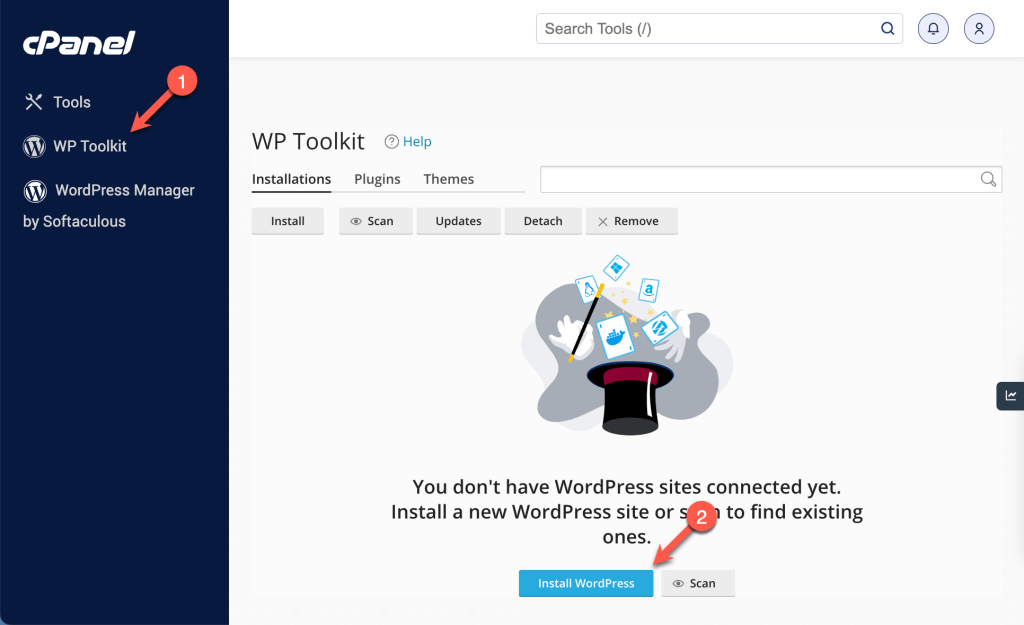
After logging in, all you need to do is go to WP Toolkit and click the Install WordPress button.
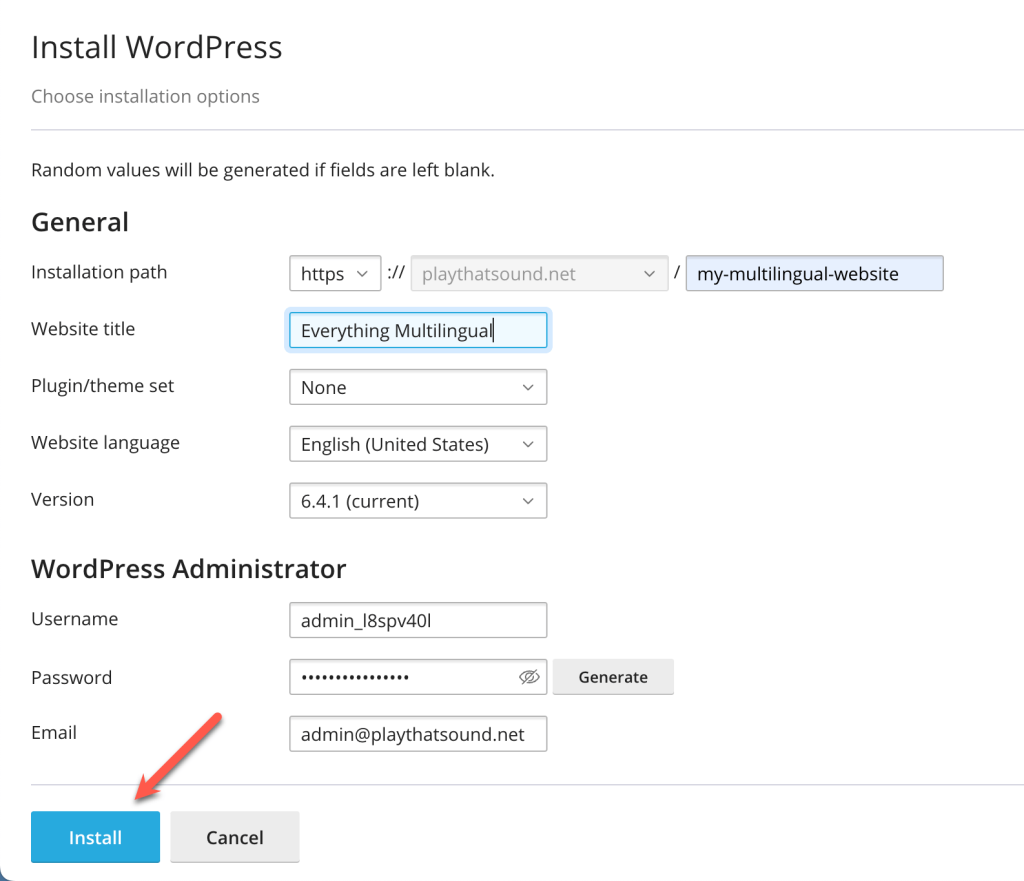
You’ll need to input a few simple details, like your website title and installation path, which defines where exactly your WordPress files and folders will be located on your hosting account. Once you input all the details, you can click Install and wait a few minutes for the installation to complete.
How to Set Up Multiple Domains for Different Languages
If you decide to use subdirectories or to add the language name as a parameter to your URL, you can go straight to your website and start installing your theme and plugins.
If you plan to use separate domains per language with a multilingual plugin like WPML, you need to configure your secondary domains. In cPanel, you can do this by setting up a domain alias.
Creating a Domain Alias
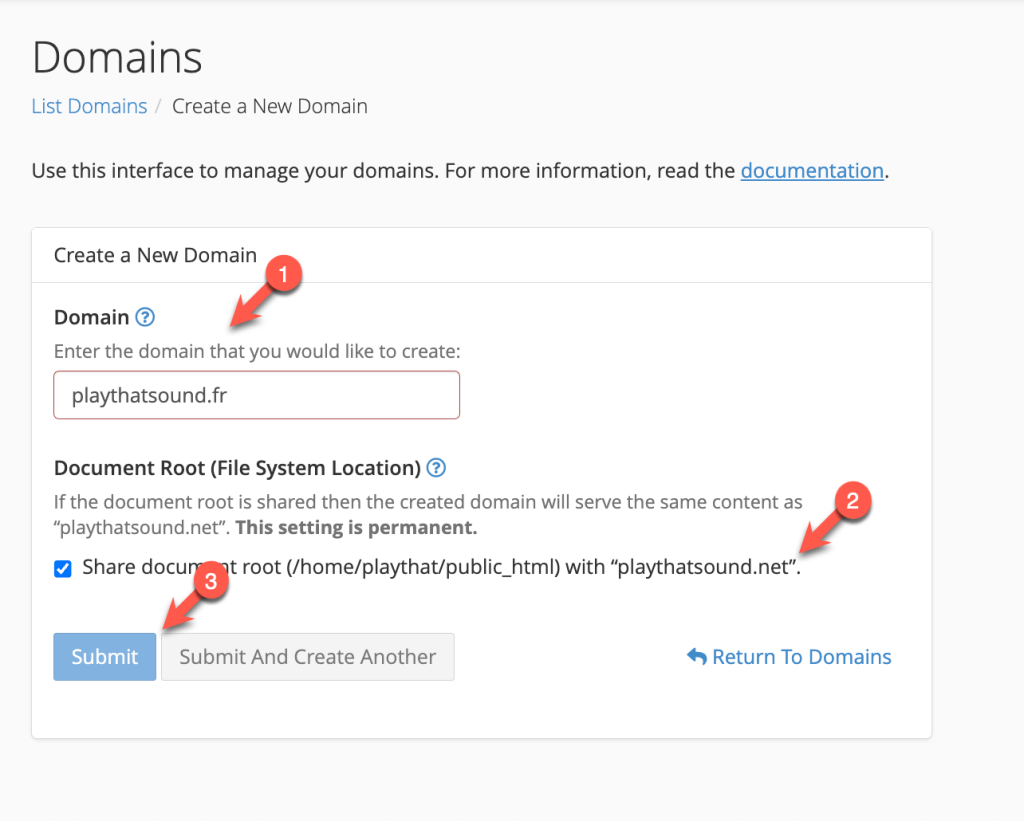
From your cPanel dashboard, look for the Domains section and click on the Create a New Domain button.
- In the Domain text box, enter the domain name you wish to add as an alias. For example, for a French version, you might enter example.fr.
- Select the Share document root option. This ensures that your alias domain shares the same web pages, folders, and content as your main site.
Click the Submit button to create the domain alias.
Pointing Domain Aliases to Shinjiru Hosting DNS Servers
After you’ve set up domain aliases in cPanel, you need to make sure they point to Shinjiru hosting DNS servers. This step makes it possible for you to manage multiple language versions of your site under one installation.
You should be able to find the server names in the emails Shinjiru sends you after you buy WordPress web hosting with us. If you can’t find this information, you can contact our team and ask for assistance.
Once you’ve located the server names, go to the Domains section in your cPanel and access the Zone Editor. Then, update the DNS settings for each of your secondary domains. This involves pointing the A record to the IP address of the server where your primary WordPress site is hosted and pointing the CNAME record to your primary domain name.
Keep in mind that it may take up to 48 hours for DNS changes to take effect. After the DNS settings update, test each alias domain by visiting its URL. Ensure each one directs correctly to your main WordPress site.
Setting Up Your Multilingual Plugin
After you confirm that your domains and subdomains work correctly, you can sign in to your WordPress website and install and activate the multilingual plugin you’ve chosen.
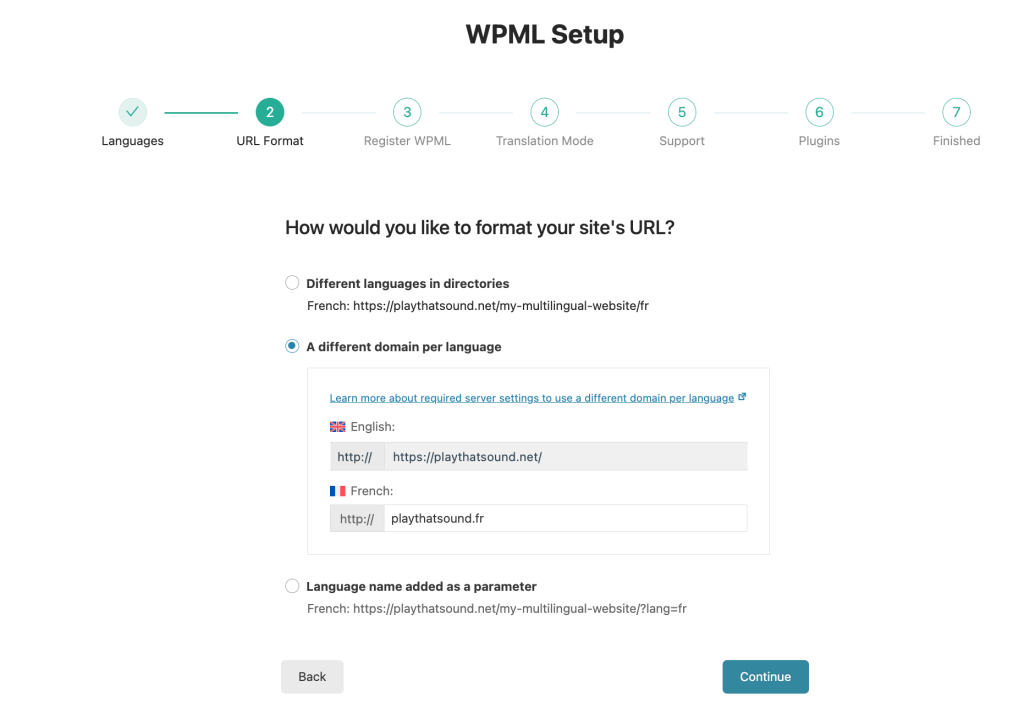
The setup process for different multilingual plugins can vary. WPML, for example, starts with a setup wizard. This wizard guides you in selecting your website’s languages and your preferred translation method. During the WPML setup wizard, pay special attention to the URL format step. This is where you align your site’s URLs with the domain setup of your choice and let WPML know how to connect your site’s translations.
A Final Note
A multilingual WordPress site opens the door to global audiences. By carefully selecting your domain name, determining the right URL structure, and choosing a suitable translation plugin, you can meet the unique needs of your diverse audience.
With WordPress web hosting from Shinjiru, you can make use of a strong platform that’s optimized for WordPress sites. Our hosting solutions make managing your WordPress website smooth and straightforward. With focus on performance, security, and user-friendly interfaces, you can be sure that your multilingual site will run well. Whether you’re a beginner or an experienced webmaster, embracing a multilingual approach with WordPress and Shinjiru hosting services will allow you to spend less time worrying about technicalities and more time focusing on creating content for your international visitors.